 Mac Screen Mirroring
Download
Miracast on a Mac
Short answer: Macs don't support Miracast, and no setting will change that. But the TV that's asking for Miracast can still show your Mac. Here's how.
Why your Mac can't use Miracast
Miracast is the wireless display standard used by Android phones and Windows PCs. On TVs it usually appears as "Screen Mirroring", "Screen Share" or "Anyview Cast". Apple uses its own system, AirPlay, and has never added Miracast to the Mac.
So when your TV says "activate screen mirroring on your device", your Mac has nothing to activate.
What to use instead
If your TV supports AirPlay, use that: Control Centre, then Screen Mirroring. If it only offers Miracast, use Mac Screen Mirroring. It doesn't need Miracast or AirPlay. It talks to the TV's built-in media player instead.
- Download Mac Screen Mirroring and open it.
- Make sure your Mac and your TV are on the same Wi-Fi network.
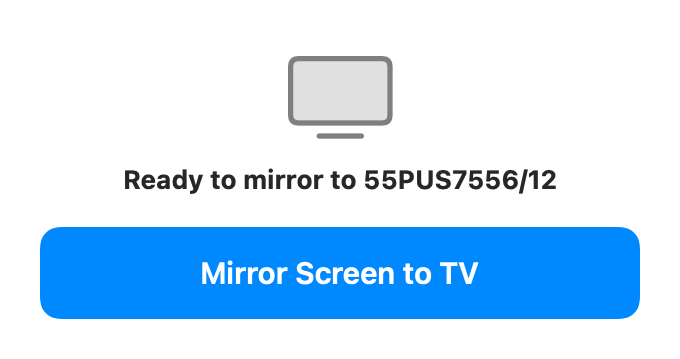
- The app finds your TV on its own. Click Mirror Screen to TV.
- Your Mac's screen and sound appear on the TV. Click Stop Mirroring when you're done.
Leave the TV on its normal screen
You don't need to open the TV's Screen Mirroring page. Leave the TV on its home screen or a normal channel, and start mirroring from your Mac.
Questions
Can I install Miracast on a Mac?
No. Miracast needs a kind of Wi-Fi connection macOS doesn't offer to apps, so there is no Miracast app for Mac.
What is the Mac equivalent of Miracast?
AirPlay. For TVs that have neither AirPlay nor a way to accept it, Mac Screen Mirroring does the same job.
My TV only has Miracast. Can I still mirror my Mac?
Yes. That's the situation Mac Screen Mirroring was made for.
Do I need a Miracast dongle?
No. A dongle won't help a Mac anyway, since the Mac can't send Miracast.