 Mac Screen Mirroring
Download
Mirror a Mac to a TV without Apple TV
An Apple TV box is one way to get your Mac on a TV. It isn't the only way, and for most people it isn't the cheapest. Here's how to mirror without one.
If your TV already has AirPlay
Many newer TVs have AirPlay built in, which makes the box unnecessary. On your Mac, open Control Centre, click Screen Mirroring and look for your TV.
If your TV doesn't have AirPlay
This is where people usually reach for an Apple TV. You can skip it. Mac Screen Mirroring sends your Mac's screen and sound straight to the TV's own media player.
- Download Mac Screen Mirroring and open it.
- Make sure your Mac and your TV are on the same Wi-Fi network.
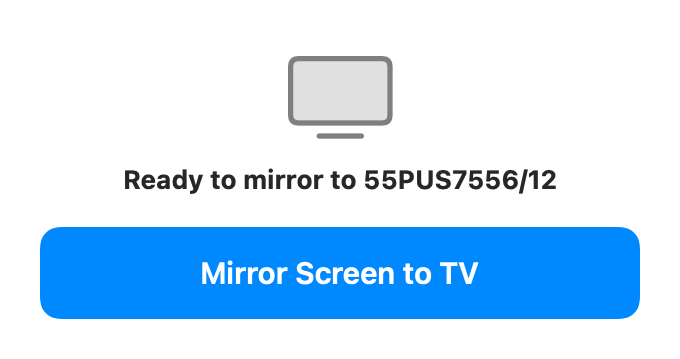
- The app finds your TV on its own. Click Mirror Screen to TV.
- Your Mac's screen and sound appear on the TV. Click Stop Mirroring when you're done.
What you save
No box to buy, no spare HDMI port to give up, no extra remote. If your Mac and your TV are on the same Wi-Fi, you already have everything you need.
Questions
Is an Apple TV required for screen mirroring?
No. It's only needed if you specifically want AirPlay on a TV that lacks it. Mac Screen Mirroring mirrors to those TVs without one.
Does it work with any smart TV?
It's built for smart TVs from Philips, Samsung, LG, Sony, Hisense and more. Open the app and your TV appears.
Is the picture quality good?
Yes. The app sends Full HD video with your Mac's sound.
Do I have to install anything on the TV?
No. Only the Mac app.